How to Connect Your CRM to AI and Build Custom Dashboards
If you’ve ever tried to pull a custom report from your CRM, you know the frustration. Built-in dashboards rarely show what actually matters, and customizing them takes time. As a result, teams often settle for incomplete insights or manual exports, which is exactly where AI CRM dashboard automation becomes valuable.
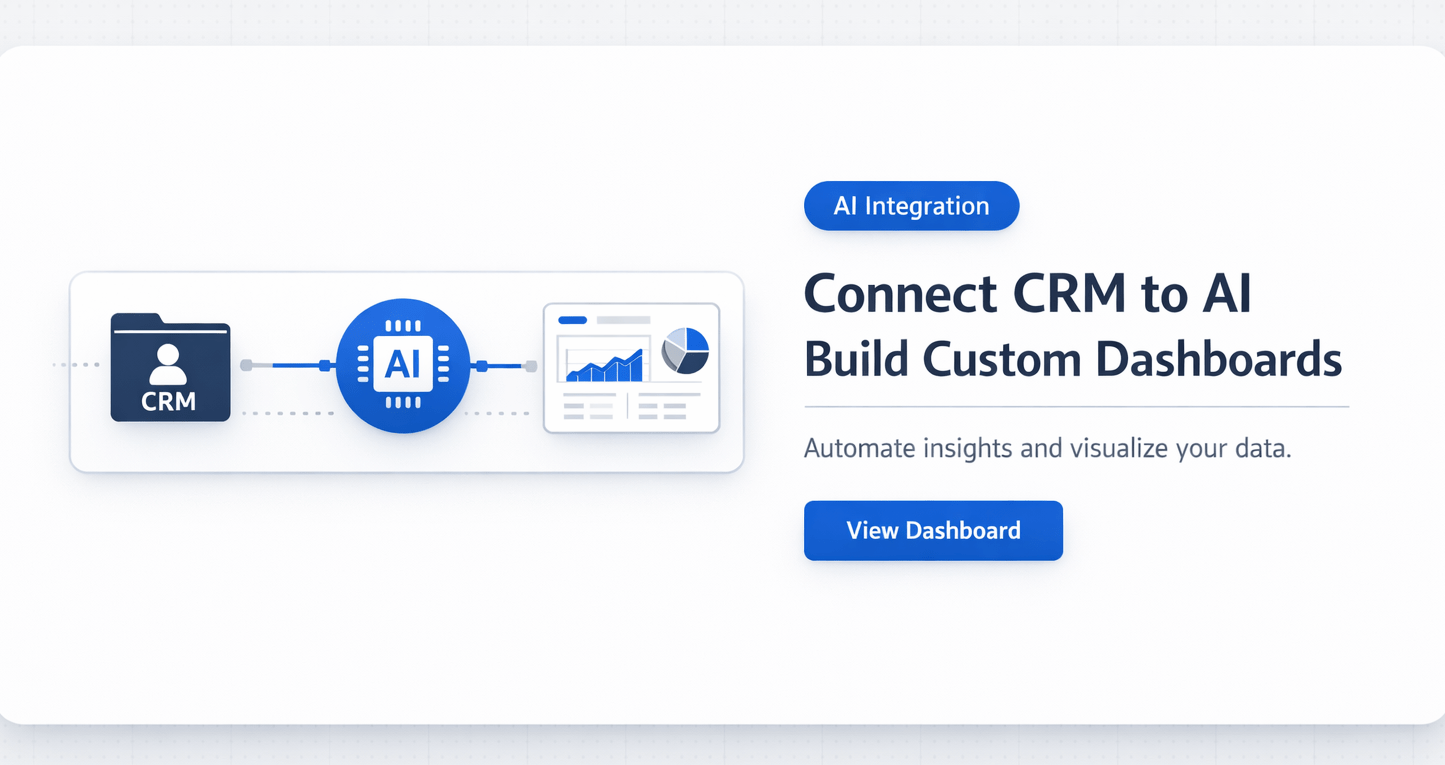
This is exactly the problem AI CRM dashboard automation is designed to solve. Instead of fighting your CRM, you can connect it directly to AI and build a fully customized, real-time dashboard tailored to your workflow.
The Problem with Traditional CRM Dashboards
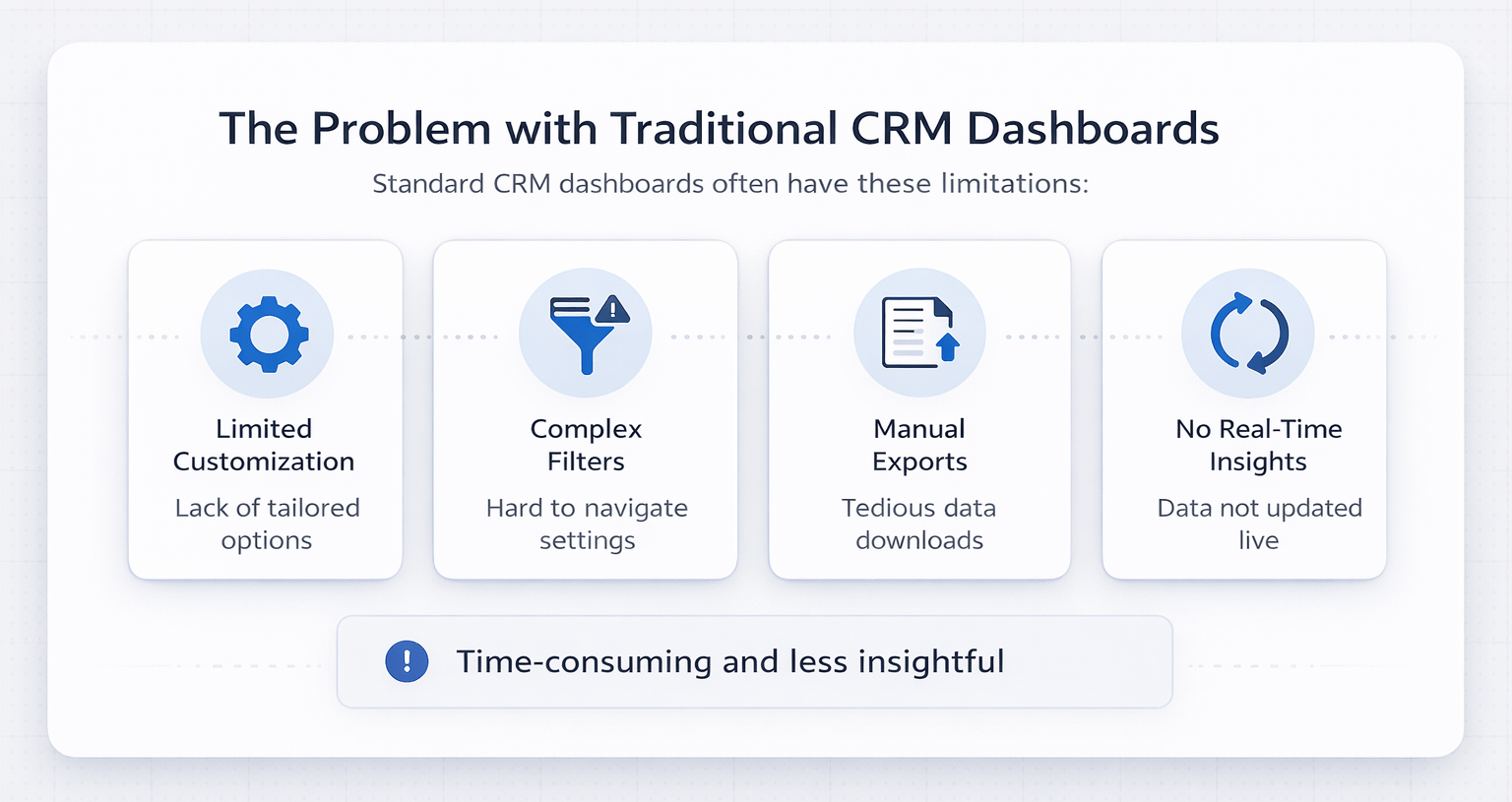
Most CRM platforms provide standard dashboards. However, they are designed around generic use cases—not your specific needs.
Common Limitations
- Limited customization options
- Complex settings and filters
- Manual data exports
- Lack of real-time flexibility
Therefore, getting meaningful insights often becomes a time-consuming process.
The Solution: AI CRM Dashboard Automation
With AI CRM dashboard automation, you can create exactly the dashboard you want—without manual setup or coding.
Instead of relying on default views, AI allows you to:
- Pull live data from your CRM
- Customize metrics and filters
- Generate interactive dashboards
- Automate updates
As a result, reporting becomes faster, more accurate, and tailored to your business.
What You Need to Get Started
Before building your dashboard, ensure you have the right setup.
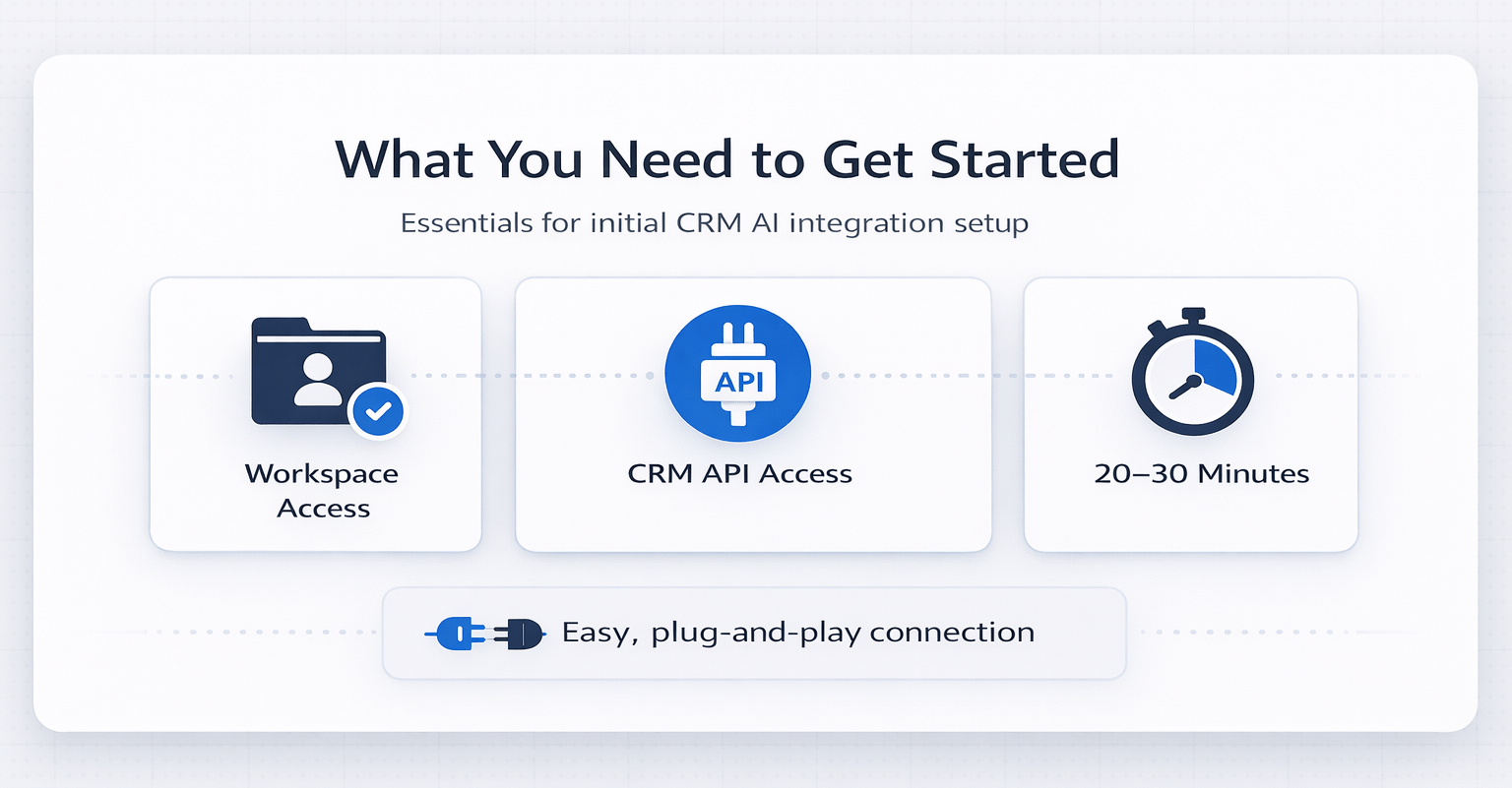
Requirements
- Claude Cowork with workspace access
- CRM with API access (PipeDrive, HubSpot, Salesforce)
- 20–30 minutes for initial setup
The connection happens through connectors. If a built-in connector is unavailable, a custom MCP server can be used.
Step-by-Step: Building Your AI CRM Dashboard
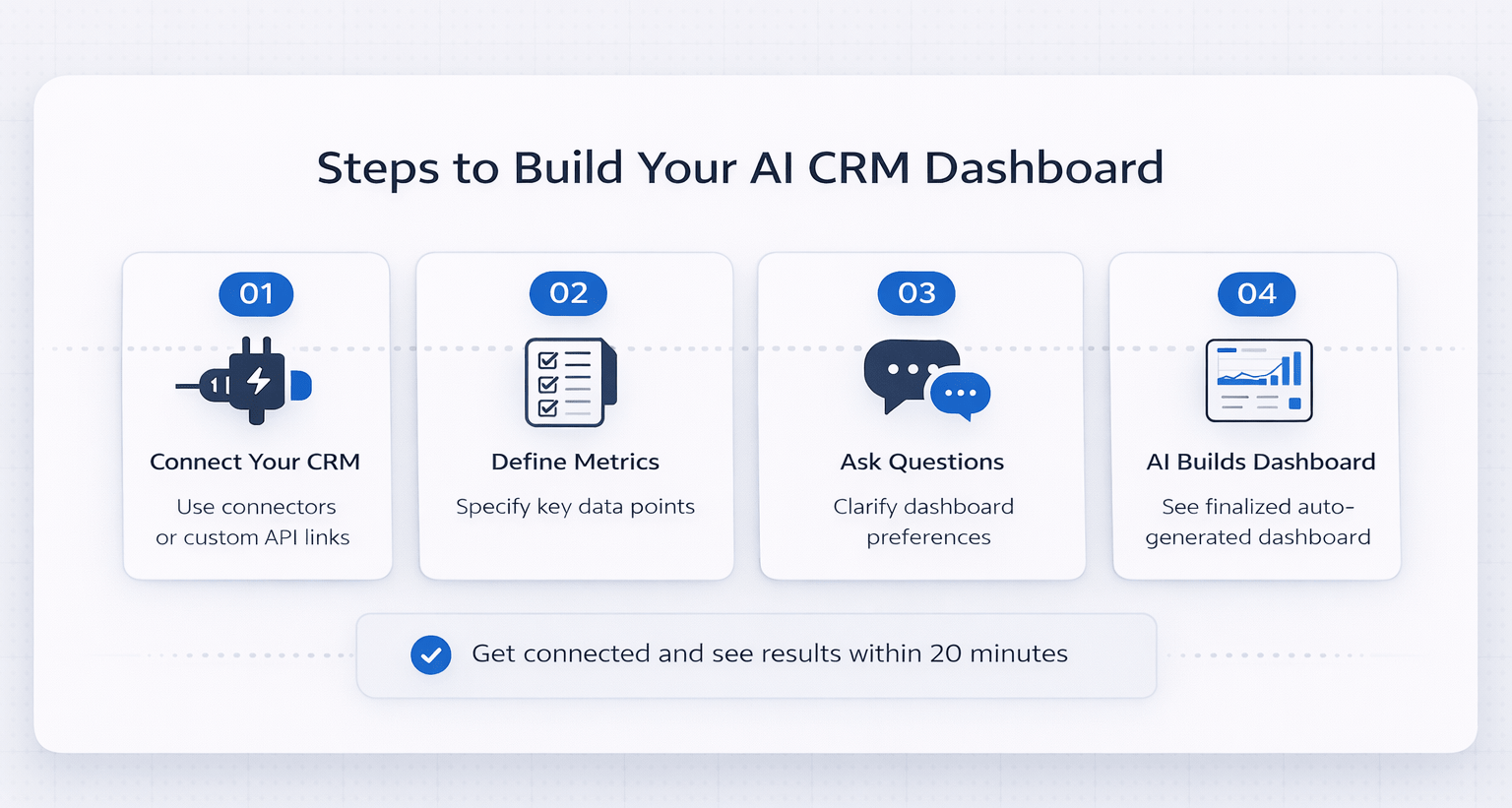
Step 1: Connect Your CRM
First, connect your CRM to your AI workspace.
- Use built-in connectors when available
- Set up custom connections via API if needed
- Ensure real-time data access
Once connected, AI can pull data directly without exports or manual input.
Step 2: Define Your Dashboard Clearly
Next, be highly specific about what you want.
Instead of saying “build a dashboard,” define:
- Deal stages
- Win/loss rates
- Average deal size
- Forecasting metrics
- Activity tracking
Clear instructions significantly improve output quality.
Step 3: Let AI Ask Questions
Before building, AI will ask clarifying questions.
- Which pipeline to use
- Who will use the dashboard
- What “interactive” means
- Refresh frequency
Answering these ensures the dashboard matches your exact needs.
Step 4: Watch the Dashboard Build
Once inputs are clear, AI handles the rest.
- Pulls CRM data
- Structures datasets
- Builds visual components
- Creates interactive elements
The entire process can take around 20 minutes.
What the Dashboard Includes
The final output is a fully interactive dashboard that mirrors real business workflows.
Core Features
- Deal pipeline by stage
- Key performance metrics
- Interactive charts
- Smart filtering options
- Clickable deal insights
- Sortable data tables
Dashboard Feature Breakdown
| Feature | Benefit |
|---|---|
| Pipeline Visualization | Clear deal stage tracking |
| Metrics Dashboard | Real-time performance insights |
| Interactive Filters | Custom data views |
| Clickable Records | Detailed deal analysis |
| Auto-Refresh | Always up-to-date data |
Because everything is automated, there is no need for manual updates.
Setting Up Auto-Refresh
To keep data current, automated refresh schedules can be configured.
Key Setup Points
- Schedule daily updates (e.g., 8 AM)
- Regenerate dashboards automatically
- Share via a bookmarked link
One limitation is that scheduled tasks run locally, so a device must remain active.
Expanding Beyond CRM Data
The same approach works for multiple data sources.
Potential Use Cases
- Property financial dashboards (Yardi, AppFolio)
- Market analysis for brokers
- Development tracking dashboards
- Portfolio performance monitoring
Therefore, AI becomes a centralized reporting layer across all systems.
Limitations to Consider
While powerful, there are some constraints.
Known Limitations
- Initial setup may require technical steps
- Scheduled tasks are not cloud-based
- Dashboards may need hosting for sharing
- Performance lag may occur during peak usage
However, these limitations are manageable with proper setup.
FAQs Regarding AI CRM Dashboard Automation
What is AI CRM dashboard automation?
It is the use of AI to build and automate CRM dashboards.
- Pulls real-time data
- Customizes reporting
- Automates updates
Conclusion: It replaces manual reporting workflows.
https://www.salesforce.com
Can AI connect to any CRM?
Yes, if the CRM has an API.
- Works with PipeDrive
- Supports HubSpot and Salesforce
- Custom integrations possible
Conclusion: API access enables flexibility.
https://www.hubspot.com
How long does setup take?
Initial setup takes about 20–30 minutes.
- Connection setup
- Dashboard configuration
- Testing outputs
Conclusion: Quick setup with long-term benefits.
https://www.forbes.com
Is coding required?
No, coding is not required.
- AI handles technical steps
- Users define outcomes
- Minimal setup knowledge needed
Conclusion: Accessible for non-technical users.
https://www.techcrunch.com
How accurate is the data?
Accuracy depends on CRM data quality.
- Real-time updates
- No manual errors
- Direct data pulls
Conclusion: Reliable if the source data is clean.
https://www.gartner.com
Can dashboards update automatically?
Yes, through scheduled tasks.
- Daily refresh options
- Automated regeneration
- No manual work
Conclusion: Enables real-time reporting.
https://www.mckinsey.com
Can this be used outside CRE?
Yes, it works across industries.
- Sales teams
- Marketing teams
- Operations tracking
Conclusion: Broad applicability.
https://www.investopedia.com
What are the limitations?
There are some technical constraints.
- Requires API setup
- Local scheduling dependency
- Hosting needed for sharing
Conclusion: Limitations are manageable.
Build a Centralized Reporting System
Join AI for CRE, where 663+ CRE professionals are already using AI CRM dashboard automation to centralize reporting, eliminate manual work, and gain real-time visibility across their pipeline.
Access real demos, templates, and workflows that show how to connect your CRM, automate dashboards, and build a system tailored to your business. Instead of relying on static reports, you can create a live dashboard that evolves with your data.