

How to Extract Rent Roll from OM into Excel Using AI
Extracting rent rolls from offering memorandums is one of those tasks everyone in CRE hates—but does constantly.
You open the PDF, squint at the formatting, manually copy data into Excel, fix the columns that broke, double-check the numbers, and 30 minutes later, you’ve got a usable spreadsheet.
I found a way to do it in about 30 seconds. No exaggeration.
Using Claude Desktop with a voice command shortcut, I extracted a rent roll from a Taylor Vacan OM (shoutout to our boy—best brokers in the business) and had a clean Excel file before I finished explaining the process to someone watching.
Here’s the full breakdown of how it works and how you can set it up yourself.
The Old Way vs. the AI Way
Everyone reading this knows the old way. You get an OM as a PDF. You scroll to the rent roll. And you try to copy the table. Half the columns break.
You spend 20–30 minutes:
Reformatting in Excel
Fixing merged cells
Re-entering numbers that got garbled
Praying you didn’t miss a unit
For a 7-unit property, it’s annoying. For a 300-unit deal, it’s a full afternoon.
The AI Way
You:
Open the OM on your screen
Hit a voice command
Say:
“Extract the rent roll and put it into Excel.”
Send a screenshot
Claude builds the spreadsheet.
The 7-unit property I tested took seconds. It was literally finished before I could explain what was happening.
The Workflow: Step by Step
Here’s exactly what I did.
1) Opened the OM on My Screen
I had a Taylor Vacan offering memorandum open and scrolled to the rent roll page. Nothing fancy. Just the document is visible on my monitor.
2) Hit My Voice Shortcut (Option + C)
I set up Option + C as a global keyboard shortcut for Claude Desktop. One press, and Claude is ready to listen.
(I covered how to set this up in another post—it takes about 2 minutes.)
3) Said My Instructions Out Loud
“Please extract the rent roll here and put it into an Excel file.”
That’s it. Spoken in normal, conversational English.
4) Sent a Screenshot
At the top left of Claude Desktop, there’s an option to send a screenshot with your message.
I clicked it, selected the window, and hit Send.
5) Claude Did the Rest
Claude:
Read the screenshot
Identified the rent roll data
Activated its Excel skill
Built the spreadsheet
By the time I looked back at the screen, it was already finished.
6) Downloaded the File
One click to download. Opened it in Excel. Clean data. Proper columns. Ready to use.
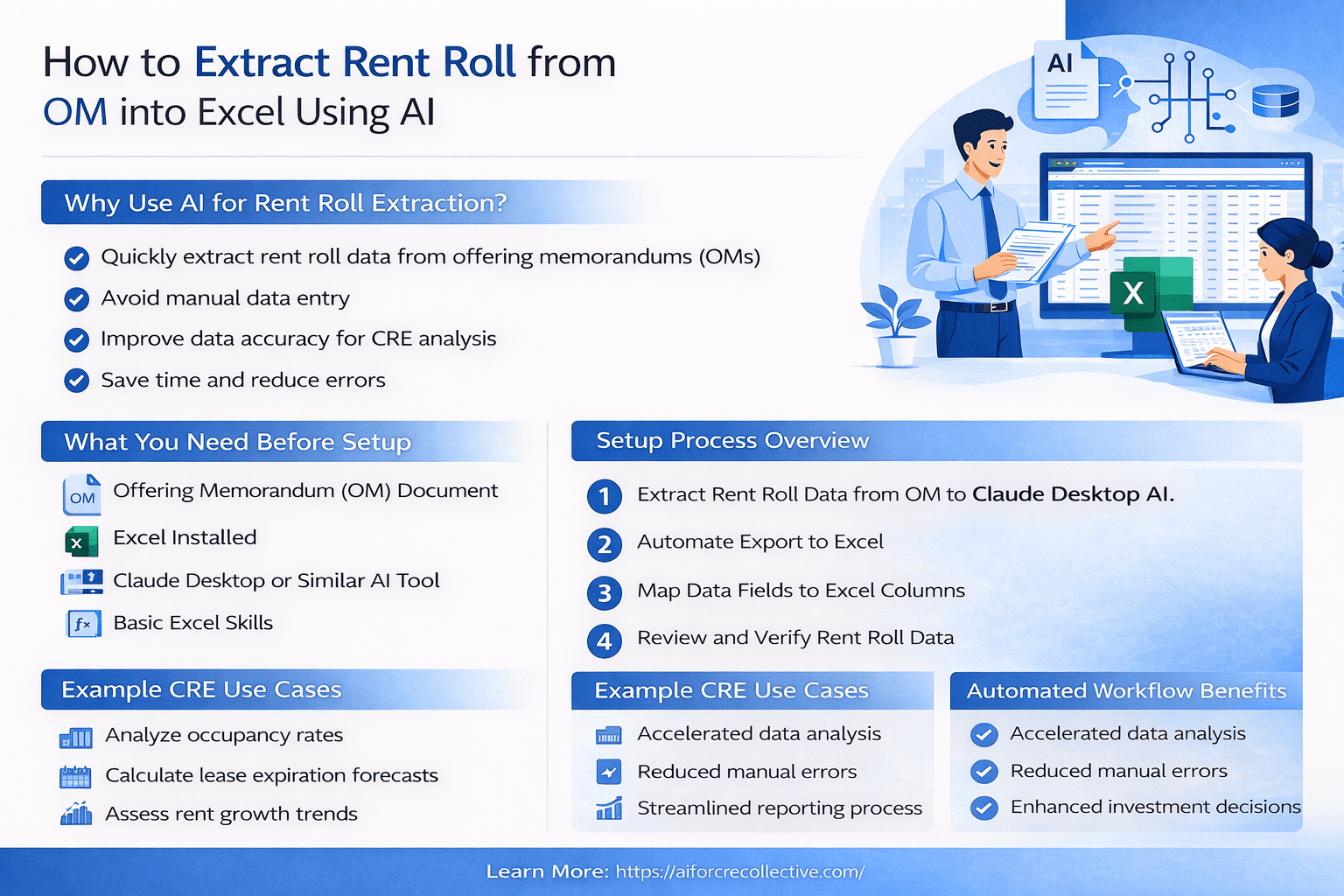
Why This Works So Well for CRE Document Extraction
The magic is the combination of voice commands and screenshots.
Uploading files works, but it adds steps:
Find the file
Drag it in
Wait for the upload
Type the prompt
With voice + screenshot:
You’re already looking at the document
You talk about what you see
Claude matches your instruction to the screen
It feels natural and fast.
The Excel Skill Is the Other Key
I set up a Claude skill that tells it:
How to format Excel outputs
Proper column headers
Clean formatting
Correct data types
Because of that, every extraction comes out ready to use—no manual cleanup.
Scaling This to Bigger Properties
My demo used a 7-unit property. Fast job. But the same workflow works on much larger deals.
100-Unit Properties
Send multiple screenshots (one per rent roll page)
Say:
“Extract the rent roll from these pages and combine into one Excel file.”
Claude stitches everything together.
300-Unit Deals
Same process. Same voice command. It takes longer to process—but the workflow doesn’t change. And this isn’t limited to rent rolls.
This also works for:
P&L extraction
Operating statements
Unit mix summaries
Any structured data trapped inside a PDF
What You Need to Get Started
Just four things:
Claude Desktop (download from Anthropic)
A keyboard shortcut set up for voice commands (I use Option + C)
The Excel skill is configured in Claude (optional, but highly recommended)
Any document you want to extract data from
Initial setup takes about 5 minutes. After that, every extraction is a 30-second process.
Time Savings Add Up Fast
One rent roll extraction saves 20–30 minutes.
Do that five times a week:
2+ hours saved
Over a month:
That’s a full workday back
And that’s just rent rolls. Add P&Ls, lease abstracts, and operating statements, and the time savings compound quickly. The voice command part makes it feel effortless. You don’t even think about it. You just talk to your computer—and the data shows up in Excel.
Try It Yourself
Set up the voice shortcut, open your next OM, and give it a shot. I’m consistently impressed by how clean the outputs are—especially once the Excel skill is configured.
If you want the full video demo and the exact skill file I use, join the AI for CRE Collective. I post these workflows with everything you need to replicate them.