How to Use NotebookLM for CRE Reports: Complete Guide
If you manage properties or review monthly reports, you know how time-consuming the process can be. This NotebookLM CRE reporting workflow guide shows how to turn multiple reports into clear insights in minutes.
Instead of reading every document, you can upload files and generate:
-
Audio briefings
-
Executive dashboards
-
Slide presentations
I tested this by uploading eight reports for a 50-unit apartment in Los Angeles. Within 10 minutes, I had a full summary and a podcast-style briefing. I run AI workflows inside the AI for CRE Collective, where 600+ CRE professionals test tools like this. This guide is based on real usage, not theory.
What NotebookLM Does
NotebookLM is a tool by Google that works with your documents.
You upload PDFs, and it:
-
Reads all files
-
Connects data across reports
-
Generates summaries and outputs
Unlike general AI tools, it focuses on your uploaded data. Therefore, the results are more relevant and accurate.
Why CRE Professionals Should Use NotebookLM
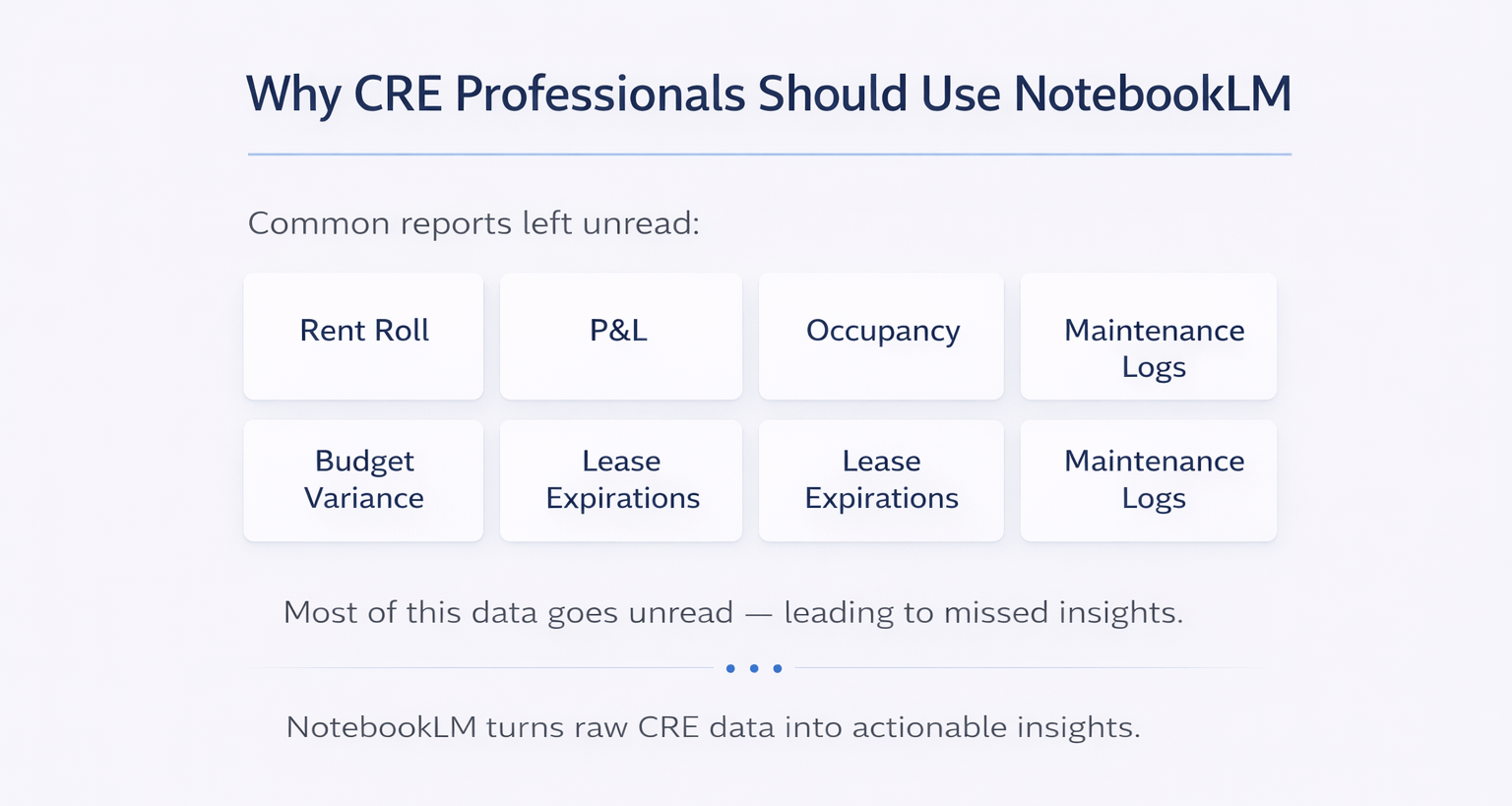
Monthly reporting creates too much data. However, most of it goes unread.
Common reports include:
-
Rent roll
-
P&L
-
Occupancy
-
Budget variance
-
Lease expirations
-
Maintenance logs
As a result, key insights often get missed.
NotebookLM solves this by turning raw data into formats people actually use.
What You Need Before Starting
Before using this NotebookLM CRE reporting workflow guide, prepare:
-
A NotebookLM account (free)
-
Reports in PDF format
-
A clear prompt
-
10–15 minutes
If your reports are in Excel, convert them first.
Preparing Your Reports
Start by converting files to PDF. This step is required.
Then:
-
Use clear file names
-
Keep formats consistent
-
Organize reports logically
Good naming improves AI understanding.
Uploading Reports into NotebookLM
Create a new notebook and upload all files at once.
You can:
-
Drag and drop files
-
Upload multiple reports
-
Remove duplicates
After uploading, you can begin analysis immediately.
Writing an Effective Prompt
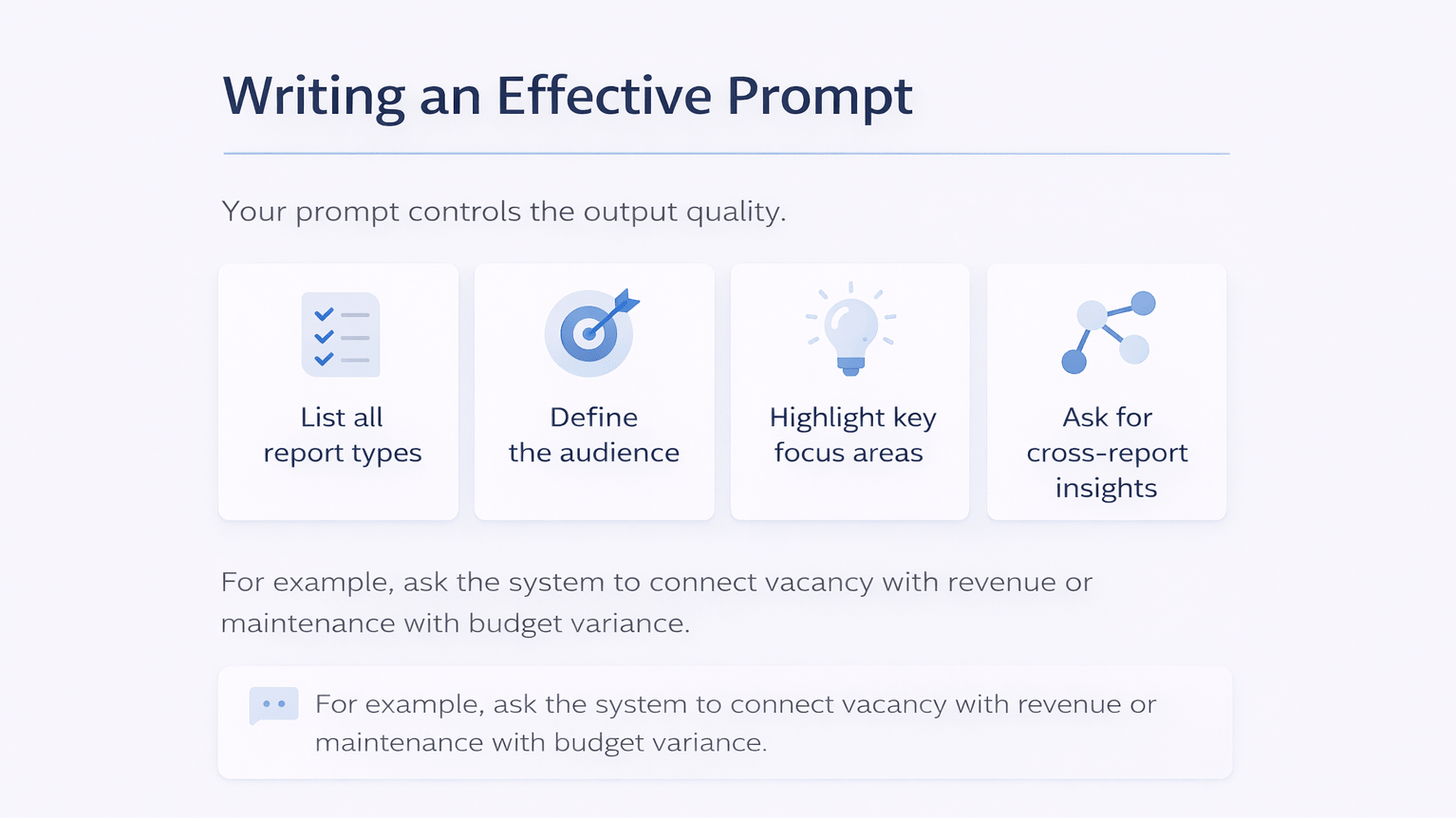
Your prompt controls the output quality.
A strong prompt should:
-
List all report types
-
Define the audience
-
Highlight key focus areas
-
Ask for cross-report insights
For example, ask the system to connect vacancy with revenue or maintenance with budget variance.
Generating Audio Briefings
Select “Audio Overview” and choose Deep Dive.
This format provides:
-
Two-speaker discussion
-
Detailed analysis
-
Engaging delivery
As a result, you can review reports while commuting or working.
Creating a Slide Deck
You can also generate slides at the same time.
The system creates:
-
Revenue charts
-
Lease timelines
-
Maintenance insights
-
Action recommendations
Although not final design-ready, it gives a strong starting point.
AI vs Manual Reporting Time
| Task | Manual Time | NotebookLM Time |
|---|---|---|
| Format reports | 30–60 min | ~1 min |
| Cross-reference data | 1–2 hours | Automated |
| Build presentation | 2–4 hours | Minutes |
| Create a summary briefing | 1–2 hours | Minutes |
| Total | 4–8 hours | ~10 minutes |
Reviewing and Using Outputs
After generation:
-
Listen to the audio once
-
Check key numbers
-
Adjust prompts if needed
The output is strong, but the review ensures accuracy.
Output Formats Available
NotebookLM supports multiple formats:
-
Audio briefings
-
Slide decks
-
Mind maps
-
Reports
-
Data tables
-
Infographics
However, audio and slides are the most practical for CRE reporting.
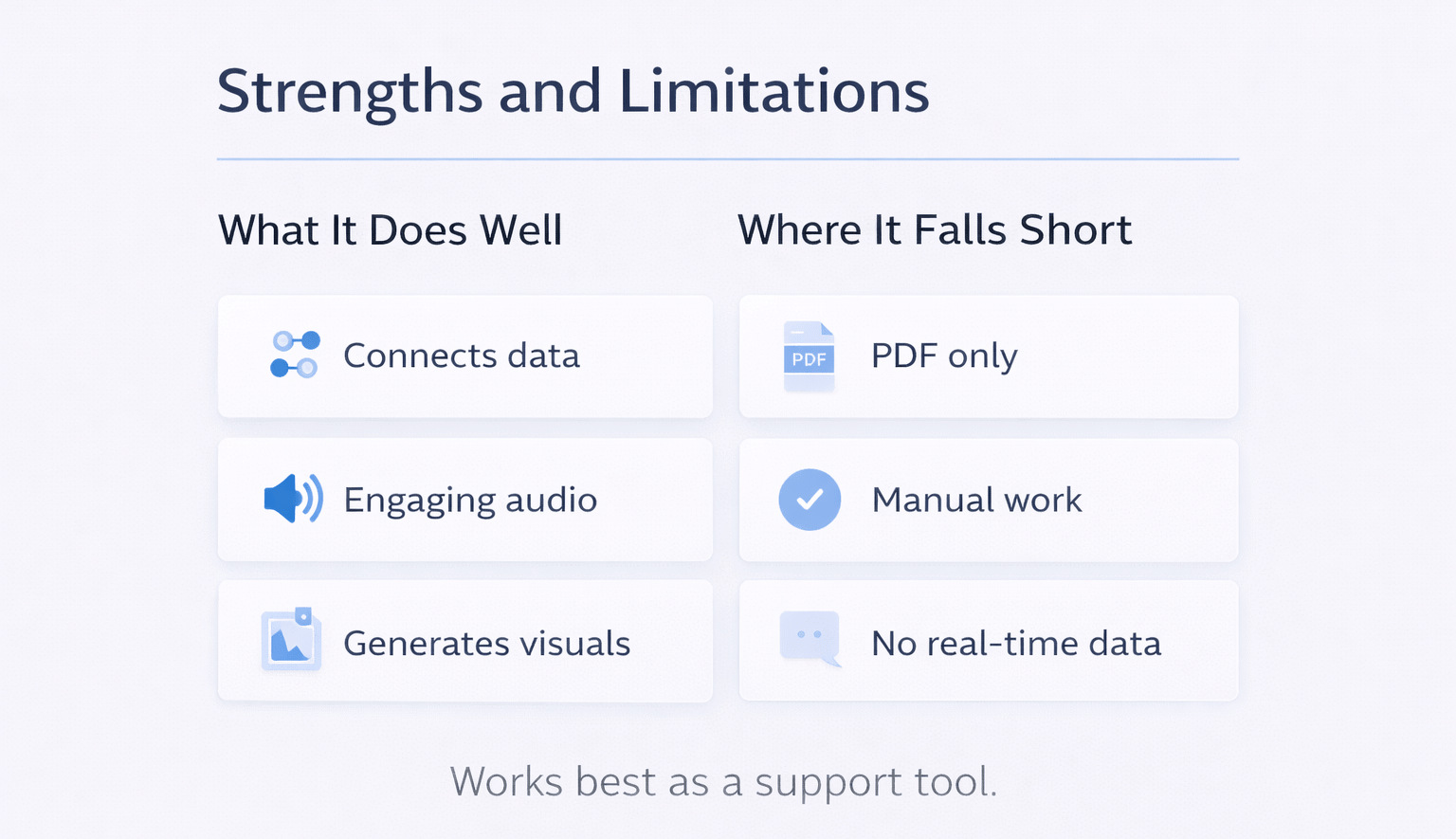
Strengths and Limitations
What It Does Well
-
Connects data across reports
-
Produces engaging audio
-
Generates useful visuals
-
Saves significant time
Where It Falls Short
-
Only accepts PDFs
-
Requires manual verification
-
No real-time data updates
-
Audio cannot be edited
Therefore, it works best as a support tool.
Practical Tips from Testing
-
Use clear file names
-
Always include “connect the dots” in prompts
-
Choose Deep Dive for full analysis
-
Generate outputs together
-
Save your best prompt
These small steps improve results significantly.
FAQs Regarding NotebookLM CRE Reporting Workflow Guide
What is NotebookLM used for?
It analyzes documents and creates summaries.
-
Reads PDFs
-
Connects data
-
Generates outputs
Conclusion: It simplifies report analysis.
Is NotebookLM free?
Yes, it is free to use.
-
No paid plan needed
-
Works with a Google account
-
Full features available
Conclusion: Easy to start using.
Can it read Excel files?
No, only PDFs.
-
Convert Excel first
-
Upload PDFs
-
Then analyze
Conclusion: Conversion is required.
How many files can it handle?
It supports multiple documents.
-
Works well with 8+ files
-
Test larger sets
-
Monitor performance
Conclusion: Scales well with testing.
Is the audio accurate?
Mostly, but a review is needed.
-
Strong analysis
-
Good insights
-
Needs verification
Conclusion: Always double-check.
Can it replace analysts?
No, it supports them.
-
Saves time
-
Improves clarity
-
Speeds decisions
Conclusion: It enhances workflows.
Can it be used for other CRE tasks?
Yes, beyond reporting.
-
Due diligence
-
Lease analysis
-
Investment docs
Conclusion: Flexible across workflows.
Is the data secure?
Yes, within your account.
-
Private notebooks
-
Controlled sharing
-
Secure environment
Conclusion: Safe for internal use.
The Opportunity
This NotebookLM CRE reporting workflow guide shows how reporting can shift from time-heavy work to fast, insight-driven workflows.
Instead of spending hours building reports, you can focus on decisions and strategy.
Standardize Your Plan Review Workflow
Join AI for CRE, where 600+ CRE professionals use structured workflows to identify issues early, reduce rework, and improve timelines across Lakeland, Florida, and surrounding markets.
Get proven frameworks, real workflows, and tested systems. As a result, you can turn AI into a repeatable process across every development project.